
Australian Flag Australian Sales & Support 1800 519 724

How to Open a Support Ticket in the HSJ Host Portal

Overview:
This guide provides a comprehensive walkthrough on how to open a support ticket through the HSJ portal. By following these steps, users can efficiently request assistance or report issues directly to the support team. Opening a support ticket enables you to get personalised help, track the status of your inquiries, and access a history of your communications with support. This process is crucial for resolving technical problems, billing questions, or any service-related inquiries you may have.

Prerequisites:
Before proceeding with this guide, ensure that you have:

  • An active account on the HSJ portal.
  • Access to the internet and a web browser.

Procedure:

  1. Log In to Your Account
    a. Navigate to the HSJ portal homepage.

    b. Enter your username and password in the designated fields.
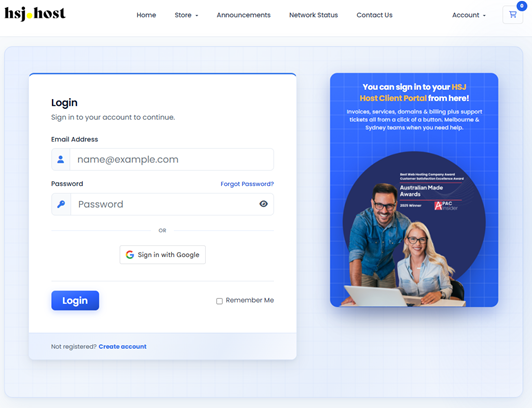


    c. Click the “Log In” button to access your dashboard.

  2. Access the Support Section
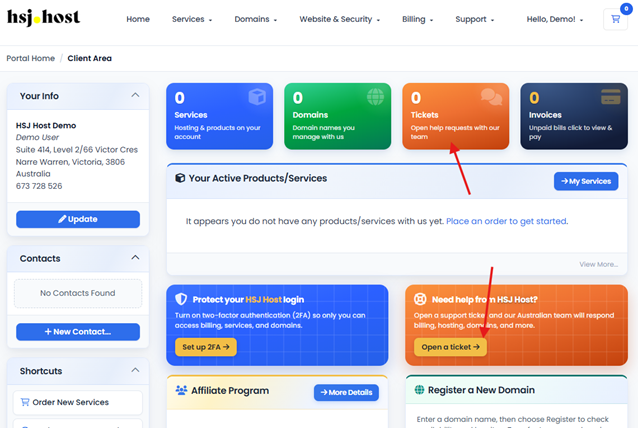
    a. From your dashboard, locate and click on the “Tickets” or “Open a Ticket”.
  1. Fill Out the Ticket Form
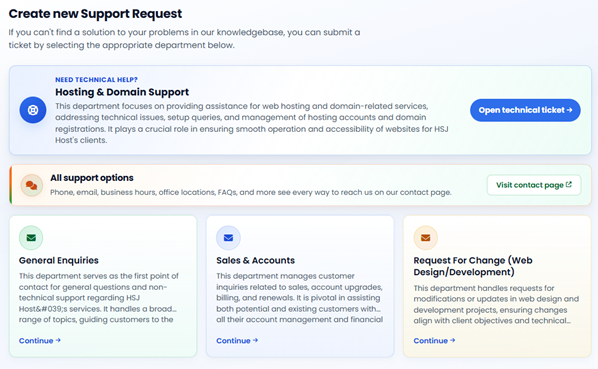
    a. Choose the relevant category for your issue from the dropdown menu (e.g., Technical Support, Billing, Account Management).

b. Provide a detailed description of your issue or request in the provided text area. Be as specific as possible to ensure a swift resolution.
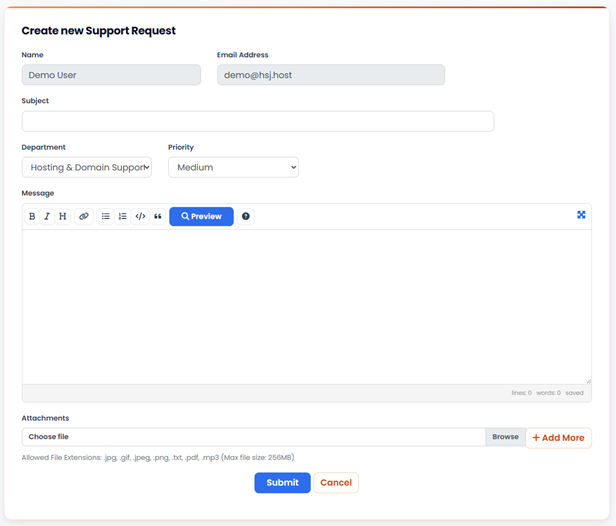
c. Attach any relevant files or screenshots that could help in diagnosing or understanding the issue.

  1. Submit the Ticket
    a. Review your ticket details to ensure accuracy.

    b. Click the “Submit” or “Send” button to officially open your support ticket.

Conclusion:
By following the steps outlined in this guide, you have successfully opened a support ticket through the HSJ portal. A member of our support team will review your submission and contact you with further instructions or solutions. Keep your ticket number handy for future reference and tracking. For additional assistance or more complex issues, consider exploring our knowledge base or contacting support directly via phone.

Identity Verification and Account Security Guidelines on the HSJ Host Portal

Overview
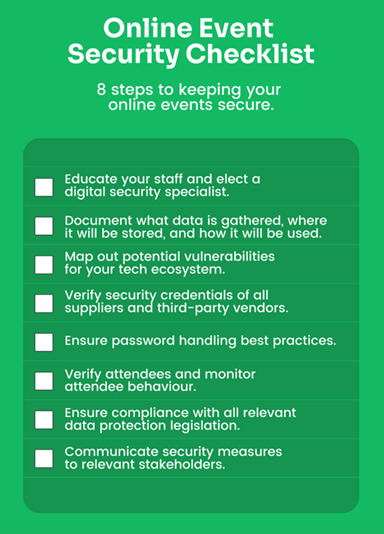
This comprehensive guide combines essential information on the identity verification process and the best practices for maintaining robust account security on the HSJ Hosts Portal. Identity verification is a critical step in safeguarding your account against unauthorised access, especially when performing sensitive operations such as resetting passwords or updating personal information. Alongside, we emphasise the importance of adhering to strong account security guidelines to protect your data and ensure a safe, secure online experience.

Prerequisites
Before diving into the details, ensure you have:

  • Access to the email account registered with your HSJ Hosts Portal account.
  • Relevant personal identification documents and account information readily available for verification purposes. For a deeper understanding of digital security, consider exploring:

Procedure

  1. Understanding the Identity Verification Process
    a. Identity verification is required for actions such as password resets, account updates, and support requests.

    b. To verify your identity, you may be asked to provide three points of ID: this could include your account number, a recent invoice, the last four digits of your bank card, or a government-issued ID.


    c. Verification can be completed via phone or email, depending on your preference and the nature of your request.

  2. Implementing Account Security Guidelines
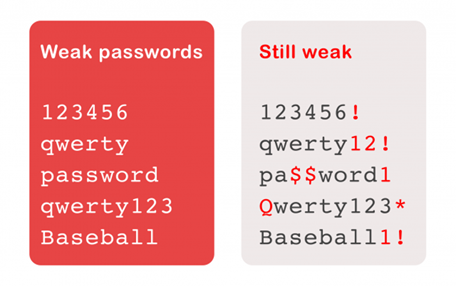
    a. Use Strong Passwords: Ensure your password is complex, using a mix of letters, numbers, and symbols. Avoid using easily guessable information like birthdays or common words.


    b. Enable Two-Factor Authentication (2FA): If available, turn on 2FA for an added layer of security. This requires a second form of verification, such as a code sent to your phone, in addition to your password.

    c. Regularly Update Your Password: Change your password periodically and avoid reusing passwords across different sites.

    d. Monitor Account Activity: Be vigilant of any unauthorized access or suspicious activity on your account. Promptly report any irregularities to support.

    e. Secure Your Email Account: Your email is a gateway to resetting passwords and receiving sensitive information. Use strong passwords and 2FA for your email account as well.

  3. Conducting Safe Online Operations
    a. Be cautious of phishing attempts. Never click on suspicious links or provide personal information to unverified sources.

    b. Ensure your computer and browser are up to date with the latest security patches and antivirus software.

Conclusion
The combined practices of thorough identity verification and adherence to strict account security guidelines form the cornerstone of protecting your online presence on the HSJ Hosts Portal. By following these recommendations, you can significantly reduce the risk of unauthorized access and ensure your personal and financial information remains secure. Always stay informed about the latest security threats and updates to keep your account safe. For further assistance or questions, our customer support team is ready to help.

How to Reset Your Password on HSJ Hosts Portal

Overview
This guide outlines the steps for resetting your password on the HSJ Hosts Portal. Whether you’ve forgotten your password or wish to update it for security purposes, following this guide will ensure you can regain access to your account efficiently. In scenarios where you’re unable to reset your password through the usual online method, we provide instructions on how to request a password reset via phone or email, necessitating three points of ID for identity verification to safeguard your account.


Prerequisites

Before you begin the password reset process, you should have:

  • Access to the email account linked with your HSJ Host Portal account.
  • Familiarity with your account details for identity verification if needed. For more information on ensuring account security, consider consulting:

Procedure

  1. Initiating the Password Reset
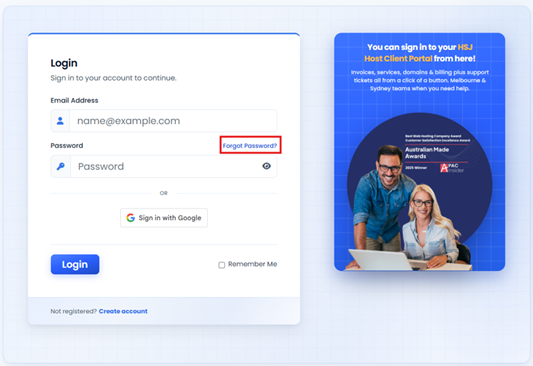
    a. Visit the HSJ Hosts Portal login page.

    b. Locate and click on the “Forgot Password?” link beneath the login field.


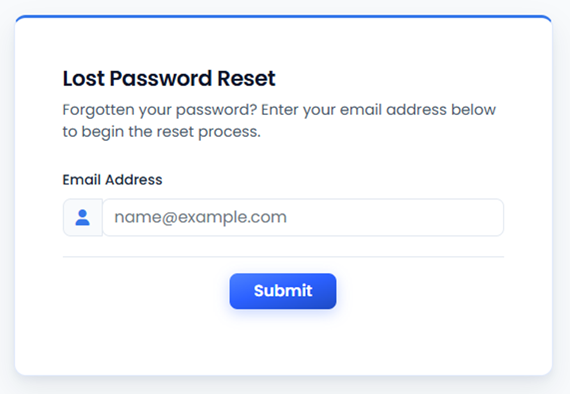
    c. Input the email address associated with your HSJ Hosts account and submit the request.

    d. Check your email for a message from HSJ Hosts containing a password reset link. Ensure to check your spam or junk folder if it doesn’t appear in your inbox.

  2. Resetting Your Password
    a. Follow the link in your email to the password reset page.


    b. Enter and confirm your new password, ensuring it meets the portal’s security standards.

    c. Submit to update your password.

  3. Alternative Password Reset Methods
    a. If you’re unable to reset your password online, contact HSJ Hosts support via phone or email to request a manual reset.

    b. For identity verification, be prepared to provide three points of ID. This may include, but is not limited to, your account number, the last four digits of your bank card, a recent invoice number, or a valid government-issued ID.


Conclusion

Resetting your password is crucial for maintaining the security of your HSJ Hosts Portal account. By following the outlined steps, you can ensure your account remains secure and accessible. In cases where online reset is not possible, our support team is ready to assist, with a robust verification process in place to protect your account. Always use a strong, unique password and consider updating it regularly to safeguard your online presence. For any additional help or information, our customer support is here to assist.

Creating an Account on the HSJ Host Portal

Overview

This guide is designed to assist users in creating an account on the HSJ Host Portal. Registering an account is the first step towards accessing and managing web hosting services provided by HSJ Host. The process is straightforward and provides users with access to a dashboard where they can manage their hosting services, view billing information, and access support. This guide will walk you through the registration process step-by-step, ensuring a smooth and hassle-free experience.

Prerequisites

Before proceeding with the account creation process, ensure you have the following:

  • A valid email address, which will be used for verification and communication purposes.
  • Access to a web browser to navigate to the registration page.

Procedure

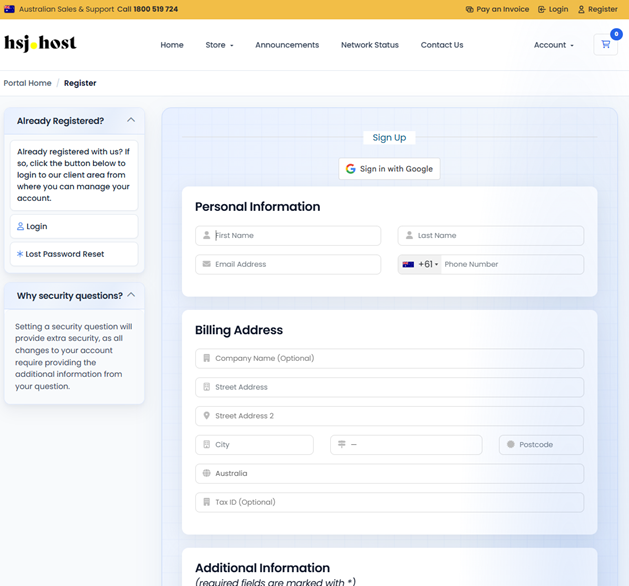
  1. Navigate to the Registration Page

a. Open your preferred web browser and enter the following URL: HSJ Host Portal Register This will take you to the registration page of the HSJ Host Portal.


b. Review the registration form before starting to fill in your details. It’s important to familiarize yourself with the information required.

  1. Fill Out the Registration Form
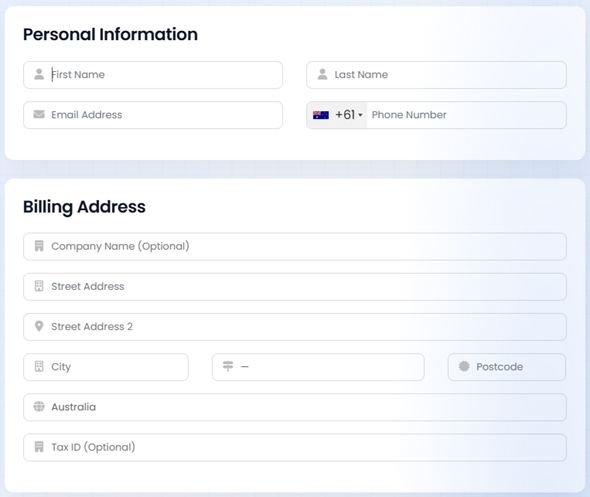
    a. Start by entering your personal information, including your full name and email address. Ensure that the email address is correct, as it will be used for account verification and communication.
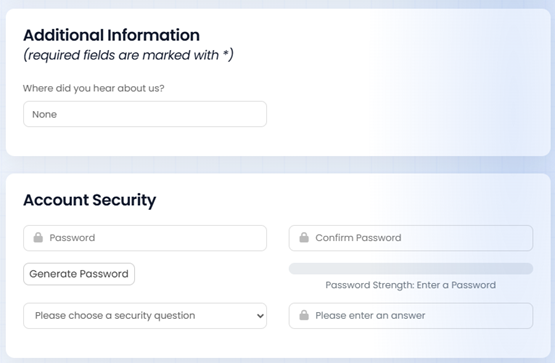
  1. b. Create a secure password for your account. Follow any guidelines provided on the page for password strength, such as the minimum number of characters or the inclusion of symbols.


    c. If there are any additional fields, such as security questions or preferences for receiving promotional emails, complete them as per your preference
  1. Complete the Registration
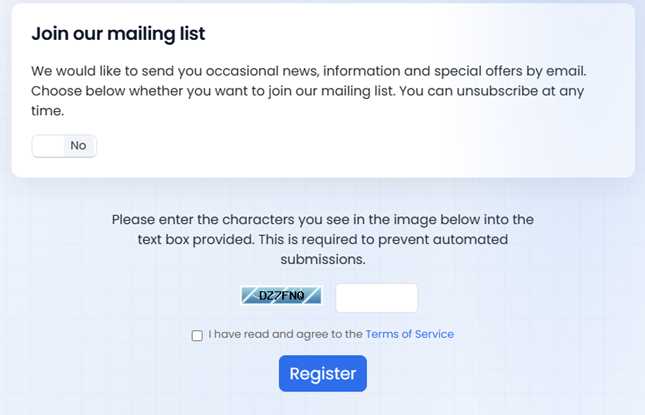
    a. After filling out all necessary information, look for a captcha or security challenge, if any, to prove that you are not a robot. Complete this step as directed.

    b. Click on the “Register” button to submit your information. You may need to wait a few moments for the process to complete.

Conclusion

Congratulations! You have successfully created an account on the HSJ Host Portal. With your account now active, you can log in and start managing your web hosting services. Remember to explore all the features and tools available to you through the portal. For further assistance or to troubleshoot common issues, refer to the help section within the HSJ Host Portal or contact customer support.