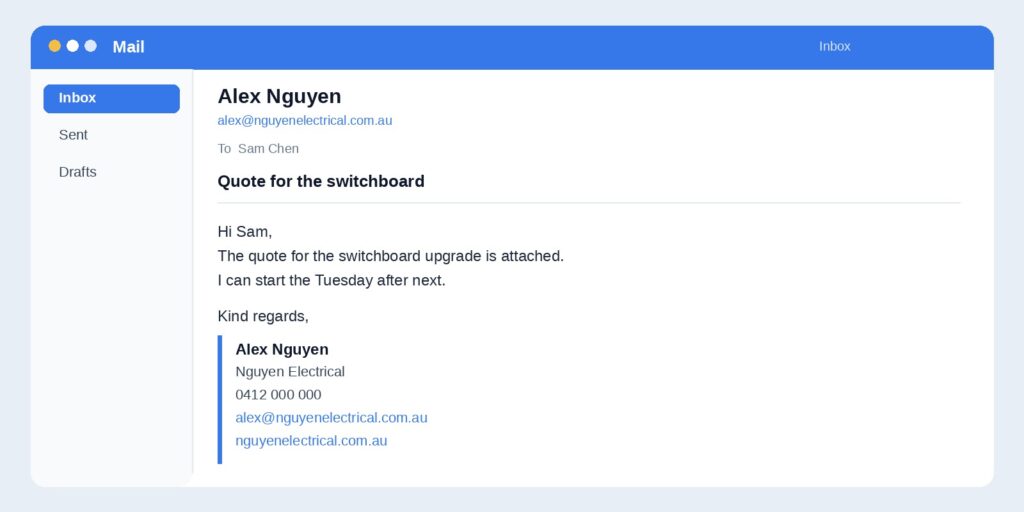
Short answer: a professional email signature is your name, role, business name, phone number, email address and website, on a few plain lines under the message. Skip the logo banner, the quote and the row of social icons. The address in that signature should be on your own domain.
Customers see the signature after they have already read the email, and again every time they look for your number. It is a small thing that gets reused on every quote, invoice and reply. This guide covers what to include, three layouts you can copy, and where to turn it on in Outlook, Apple Mail, webmail and a phone.
The address does more work than the signature
A tidy signature under a free Gmail or Hotmail address still looks like a personal inbox. The same lines under [email protected] look like the business. Set up a professional email address on your domain first, then add the signature underneath it. The signature can change any time. The address is the part printed on the card and saved in other people’s contacts.
What to put in a professional email signature
Six lines is enough for most Australian small businesses.
- Your name.
- Your role, if you have one. “Director” or “Office manager” is plenty. A sole trader can skip the title.
- The business name, written the way it appears on the website and the invoice.
- One phone number customers already use: a mobile, or the 1300 or 1800 number. A second number is fine if people need a direct line and a main line.
- The email address on your domain, the same one the message was sent from.
- The website, if you have one. Leave it off rather than sending people to a parked page.
One extra line is optional. A street address helps if customers visit you. One social profile helps if that is genuinely how people contact you. An ABN belongs on the invoice, not at the bottom of every reply.
What to leave out
- A favourite quote, a bible verse, or “sent from my iPhone” stacked on top of a paragraph of legal text.
- A wide logo or banner. A lot of inboxes hide images, and the ones that show them often treat a big graphic as a slow attachment. If you use a logo, keep it small and write the business name in text as well, so the signature still works when the image is blocked.
- Every social account the business has ever opened.
- A different colour, font and size on every line. Plain text matches the email and stays readable on a phone.
- A personal Gmail or Hotmail address in the contact line. That undoes the point of having the business address.
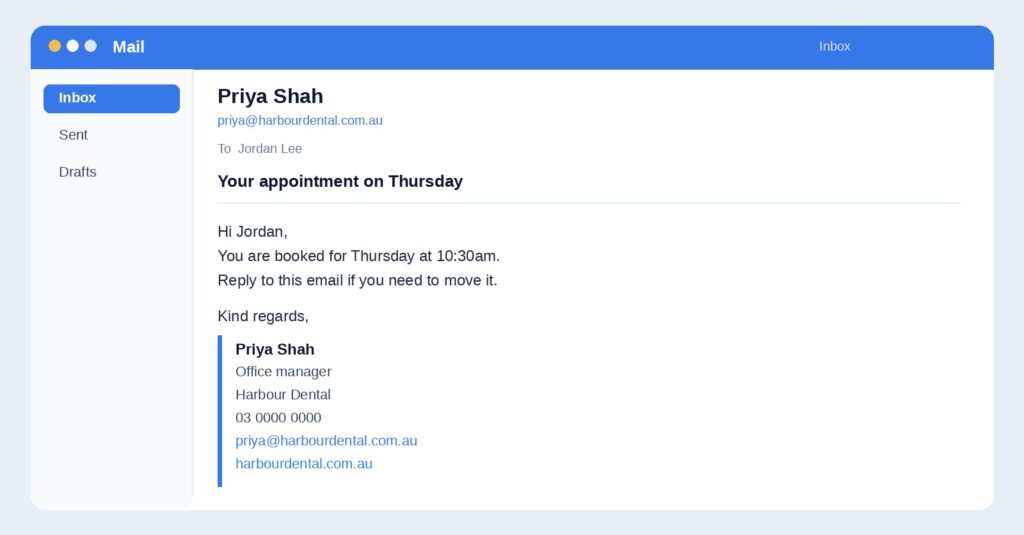
Professional email signature examples
These are made-up businesses. Copy the shape, not the names. Keep your own details on one consistent layout so a customer who emails two people at the company sees the same business.
Prefer to fill in your own details? Use the email signature generator and paste the result into your mail app.
Sole trader
Alex Nguyen
Nguyen Electrical
0412 000 000
[email protected]
nguyenelectrical.com.au
Someone in a small team
Priya Shah
Office manager
Harbour Dental
03 0000 0000
[email protected]
harbourdental.com.au
A shared inbox
sales@, info@ and accounts@ do not need a person’s name. Name the team and give the number a customer should call.
Accounts
Northside Timber
02 0000 0000
[email protected]
northsidetimber.com.au
The closing line above the signature
The close is one line. The signature carries the contact details, so the close does not need to.
- Kind regards is the safe close for a customer you do not know well, including a first quote.
- Thanks and your first name is enough once you are already emailing that person.
- Cheers is normal in Australia between people who already work together. It is a poor fit on a first email to a new customer.
“I hope this email finds you well” adds a line and says nothing about the job. Start with why you are writing.
How to add the signature
Put the same text in each app you send from. A signature that exists only on the laptop will be missing when you reply from your phone.
- Outlook on the web, and the new Outlook app: Settings, then Mail, then Compose and reply. Paste the signature, tick it for new messages and for replies, and save.
- Outlook for Windows (classic): File, Options, Mail, Signatures. Create one, set it as the default for new messages and replies, then OK.
- Apple Mail on a Mac: Mail, Settings, Signatures. Choose the business account, not “All Signatures”, and paste the text. Turn off “Always match my default message font” if you want the signature to stay plain.
- Webmail on email hosting: in Roundcube, open Settings, then Identities, select the address, and paste the signature. Save.
- iPhone: Settings, Apps, Mail, Signature. Turn on per-account signatures so the business wording is not also stuck on the bottom of personal mail.
- Android: open the mail app, go to the business account settings, and look for Signature. The menu name varies by app. Gmail’s app can show an address hosted elsewhere, and its signature setting is under Settings, then the account, then Mobile signature.
Send one message to yourself before you email a customer. Check it on a phone. If the logo is a broken box, take the logo out and keep the words.
Use one layout for the whole team
Agree the order of the lines once, then each person changes only their name, role, direct number and address. A customer who emails two people should be able to tell they work at the same company without comparing fonts. Shared mailboxes get the shorter version, with the team name instead of a person.
If the mailbox does not exist yet, business email hosting gives you the addresses on your domain without moving your website. Our guide to how to set up a business email address covers creating the mailbox and connecting it to Outlook, Apple Mail and a phone. The signature is the last step, after mail is actually sending.